

-
Polls
 Loading ...
Category Archives: Excel Tip of the Week
Excel Tip of the Week: The Finale
Today’s tip is the 50th and final Excel Tip I will be writing for OwenBloggers. I’ve really enjoyed writing these tips over the past year and I hope you’ve enjoyed reading them. Hopefully some of you have learned a few things.
People have asked me before how I became good at Excel, so for this final post I wanted to give some practical advice on how to improve your Excel skills.
Use Excel – This sounds so obvious, but you can’t get good at Excel unless you are using it frequently. This is why almost every single Excel tip I wrote has an example spreadsheet for you, the reader, to get hands-on experience. But you should go beyond that. Use Excel for random stuff like making a grocery list or tracking your workouts. You might end up discovering something in Excel you didn’t know was there or get inspired to learn something new just to see if it will work.
Excel Tip of the Week: Calculation Options
Today’s topic is calculation options.
In Excel you can specify a few different ways as to HOW the program calculates your numbers. This might sound a bit odd to a few of you, but hopefully the explanations of the different options will clear things up.
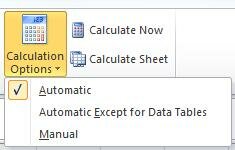
There are a couple ways to view the calculation options. The first way is on the Ribbon under the Formula menu. If you click into the formula menu and then look to the far right you will see the calculation options. (Keyboard shortcut Alt → M → X) However, the options shown in the Ribbon are a small sampling of the full set of calculation options available (and on a Mac it is even more limited).
The other way to look at the calculation options is to open the Excel Options (File → Options) and then clicking on “Formulas.” (Mac: From the menu bar click on Excel then Preferences then select the Calculation icon.)
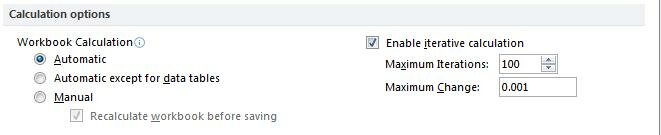
Excel gives three different calculation options that are mostly self-explanatory:
1) Automatic: This is the default mode. In this mode Excel will recalculate every formula in the spreadsheet each time something changes.
Excel Tip of the Week: SUMIFS & COUNTIFS
Today’s topic is SUMIFS and COUNTIFS.
You might be thinking, “Wait a minute Doug, you already covered this topic!” But look again at those formula names, there is an “S” at the end of them indicating a completely different and more advanced function.
These two formulas are actually new to Excel as of 2007. These formulas have helped reduce the need for moving data into Microsoft Access or coming up with super complex array formulas. As their names might suggest these functions allow the user to sum or count data based on multiple criteria instead of just a single criteria.
Here are the inputs for the SUMIFS function:

Notice how “sum_range” is the first input in this for formula which is the opposite of the SUMIF function. Also notice the ellipsis at the end which indicates that more inputs can be received. This formula can actually handle up to 127 different range/criteria pairs.
Here are the inputs for COUNTIFS:

COUNTIFS is very similar to SUMIFS just without the “sum_range.” This formula can also hold up to 127 different range/criteria pairs.
Let’s look at an example. Download the example spreadsheet here.
Posted in Doug Midkiff '12, Excel Tip of the Week Tagged countifs, excel, formulas, functions, sumifs 1 Comment
Excel Tip of the Week: Protecting Worksheets
Today’s topic is password protecting your worksheet.
In my professional career I’ve had to make many spreadsheets for other people to use. This is always a tricky situation because regardless of Excel skills, there will always be an information asymmetry between the developer and user of the spreadsheet. Even if the spreadsheet developer uses the most clear formatting and annotation there is still a risk for the user to delete something, insert something, or paste something where it isn’t supposed to go.
To help combat this, it is sometimes wise to password protect a spreadsheet. Excel actually gives you quite a bit of flexibility when it comes to password protection. You can protect just a single cell of a spreadsheet all the way to the entire sheet and you also have a wide array of protection options. For example, you can set the parameters such that users can change the cell color, but can’t change the cell value. Or you could allow users to sort the data, but not use the Auto-Filter. Let’s look at some basic examples:
Download the example spreadsheet here.
Posted in Doug Midkiff '12, Excel Tip of the Week Tagged excel, password protection, protect worksheets Leave a comment
Excel Tip of the Week: Error Codes
Today’s topic is Excel formula Error Codes.
Not long after learning how to create formulas in Excel, you probably started to see the ever-so-annoying formula error codes. This post will hopefully demystify these error codes and give you some techniques on how to deal with them.
There are 8 formula error codes in Excel. I’ve created a table below with their definitions and common troubleshooting techniques. Some of the troubleshooting actions are pretty obvious, but I included them for completeness sake.
| Error Code | Definition | Possible Fix |
|---|---|---|
| ####### | Column is not wide enough to display all the characters in a cell, or a cell contains negative date or time values. | Widen the column or fix the date error. |
| #DIV/0! | A number is divided either by zero (0) or by a cell that contains no value. | Don’t divide by zero. |
| #N/A | A value is not available to a function or formula. | Check your formula carefully for misplaced commas or missing information. |
| #NAME? | Excel does not recognize text in a formula. | Make sure your formula or named range is spelled correctly. |
Posted in Doug Midkiff '12, Excel Tip of the Week, Uncategorized Tagged error codes, excel, troubleshooting Leave a comment